 English
 Arabic













Managing Your Products After Publishing
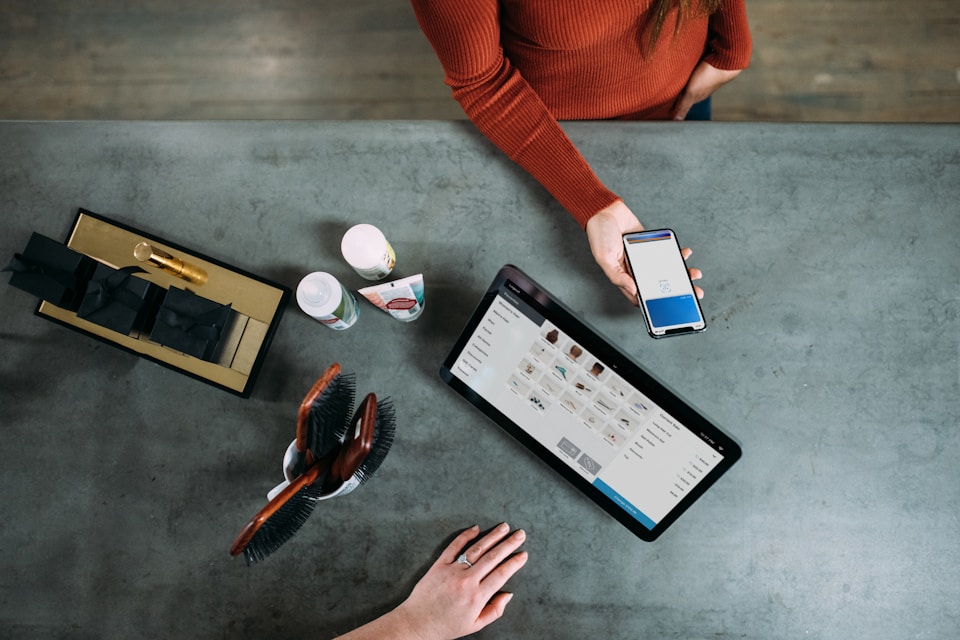
Your Product Control Room: The Products Page
Everything you've published lives in your dashboard under Products. The page is a table of your listings with filters along the top — by listing type, product type, category, stock status — and it doubles as your analytics board: each row shows the product's stock, price, and page views, so you can see at a glance what's getting attention and what's invisible.
Use the status filter to switch between:
- Active — live on the store right now.
- Sold — products whose stock reached zero.
- Drafts — everything you saved with "Save as Draft" and never finished. Open one to jump right back into the form where you left off.
Edit — Nothing Is Set in Stone
Click the edit icon on any product to reopen the two-step form: swap photos, rewrite the description, change the price, adjust stock, add options, update the weight. Press Save Changes and the update goes live immediately — no re-approval, no waiting. This is also how you restock: a sold-out product just needs its stock number raised and it's orderable again.
You can even change a product's listing type during an edit — turn an ordinary listing into a full sale listing once you're ready to sell with checkout (you'll be asked for the price and stock the new type requires).
Duplicate — Your Bulk Listing Friend
Selling twenty phone cases that differ only in model name? List one perfectly — photos, description, shipping, options — then hit the Duplicate icon. Dukkan creates a copy as a draft with all the details carried over. Open the copy, change the title, price, and whatever differs, and publish. For sellers with large catalogs this turns a 15-minute listing into a 2-minute one.
Delete — With a Breath Before You Click
The trash icon removes a product from the store. It disappears from search and your shop page immediately. Prefer a softer touch? If a product is temporarily unavailable, just set its stock to zero (it shows as sold) or save it as a draft instead of deleting — you keep the reviews, views history, and all the work you put into the listing.
Promote — Buy Your Product a Front Seat
Active products can be promoted: you choose a number of days, Dukkan calculates the cost (days × rate), and your product gets featured placement in front of buyers for that period. If there's a cost, it's paid through the normal checkout like any purchase. Promotions are best spent on products that already convert — promote your proven listing, not your problem child.
Quote Request Products: One Extra Page to Watch
If you have "price request" listings, their action isn't on the Products page — it's under Quote Requests in your dashboard. That's where buyers' price requests wait for your reply, and where accepted quotes become orders. The full flow, with tips for quoting fast, is in Listing Types Explained.
A Ten-Minute Weekly Routine
- Check Sold and restock winners. Anything at zero stock that was selling deserves an immediate restock.
- Read your page views. High views + no sales = price or photos problem. Zero views = title/category problem.
- Finish or delete drafts. Drafts older than two weeks are either worth 10 more minutes or worth letting go.
- Reply to every quote request. Same-day replies win the order.
- Duplicate your newest hit. One product selling? Its brothers and sisters probably will too.
Where to Go Next
- New products from scratch: The Complete Guide to Adding a Product
- Sizes, colors, variants: Variable Products
- Prices and discounts: Pricing, Discounts & What You'll Earn