 English
 Arabic







Variable Products — Sizes, Colors & Options Explained
Stop Creating a Separate Product for Every Size
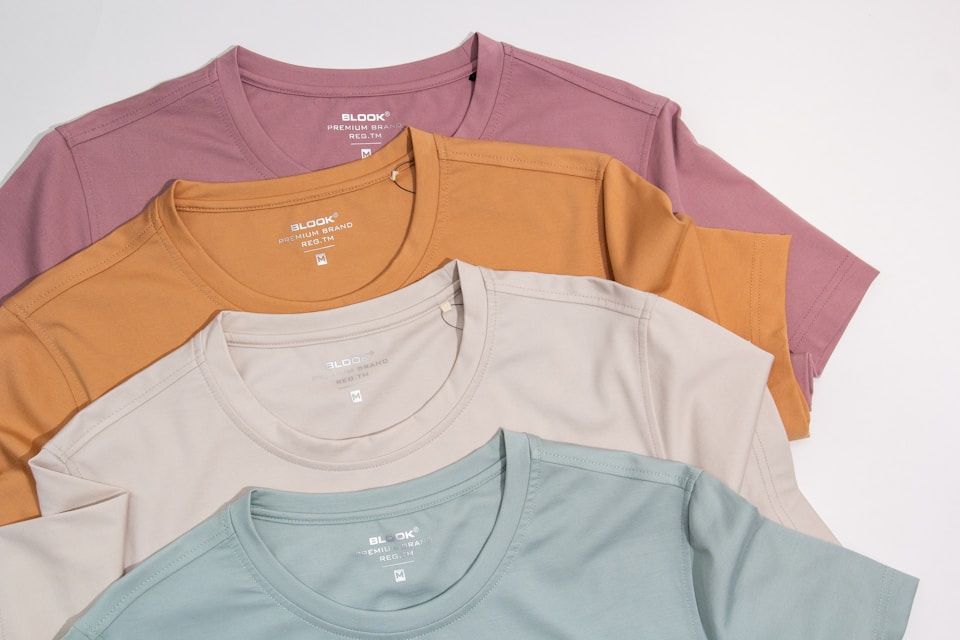
If you sell a shirt in three sizes and four colors, you don't need twelve product listings. Dukkan's "Product Options" section — in step 2 of the product form — lets you define the options once, and it automatically generates every variant combination, each with its own price, stock, SKU, weight, and image. One listing, one reviews page, one place to edit — and the buyer gets clean selectors for size and color instead of scrolling past near-duplicates.
Options are available on standard sale listings ("Add a Product for Sale").
Two Kinds of Options: Variants vs. Extras
When you click "Add Product Option", you name the option (Size, Color, Material…) and pick a type. The type decides what happens:
Variant options — they generate combinations
- Dropdown — a select list (Size: S / M / L / XL). The workhorse; use it by default.
- Radio buttons — same idea, options shown as a clickable list. Nice for short lists (2–4 values).
- Color swatch — values shown as colored circles. You pick the color for each value from a color picker. Use it whenever the option is literally a color — buyers see and pick colors visually.
- Image swatch — like a color swatch, but each value shows a small image you choose. Perfect for patterns, prints, or finishes (marble, wood tones) where a flat color isn't enough.
Every combination of values across your variant options becomes one row in the variants table: Size S + Black, Size S + White, Size M + Black… and so on.
Extra options — buyer input, no combinations
- Checkbox list — optional add-ons the buyer ticks (gift wrapping, engraving, extra charger).
- Text input — the buyer types something (name to engrave, text to print).
- Number input — the buyer enters a number.
Extras attach to the order without creating variants. A request can combine both: a buyer picks Size and Color (variants) and ticks "gift wrapping" (extra) in one go.
Creating Your Options, Step by Step
- In step 2 of the product form, find Product Options and click "Add Product Option".
- Enter the option name — e.g. "Size". Options are per-language: use the Edit Translations button to add the name in Arabic and English so every buyer sees it in their language.
- Choose the type — dropdown for Size, color swatch for Color, and so on.
- Add the values: M, L, XL… For a color swatch, pick each value's color from the picker. For an image swatch, choose each value's image.
- Add a second option if you need one — e.g. "Color". As soon as you do, the variants table regenerates with every Size × Color combination.
Working with the Variants Table
Below your options, Dukkan builds the Variants table. Each row is one sellable combination, with its own:
- Image / Color — assign a photo (or the swatch color) so the gallery jumps to the right image when the buyer picks this variant.
- Variant Name — auto-composed from the values (M / Black).
- SKU — optional per-variant code for your own tracking.
- Price and Discounted Price — each variant can have its own price; XL can cost more than M.
- Quantity — stock for this exact combination. This is the number that actually sells down; the product's main stock is ignored once variants exist.
- Weight (kg) — if one variant weighs differently (a king-size blanket vs. a single), shipping stays accurate.
- Default — the variant pre-selected when buyers open the page. Set it to your most popular combination.
- Status — activate the variants you sell, deactivate the ones you don't. A deactivated combination simply isn't offered; no need to delete anything.
The Bulk Tools (Your Time-Savers)
Above the table sit four "apply to all" fields — Price, Discounted Price, Quantity, Weight — each with a check button. Type a value once, press apply, and it fills every variant. Typical workflow: apply 15,000 to price and 10 to quantity for all, then touch up the exceptions individually.
Below that, select rows with the checkboxes (or select all) and use "Activate Selected" / "Deactivate Selected" to switch whole batches on or off.
A Worked Example: The T-Shirt
- Add option "Size", type Dropdown, values: S, M, L, XL.
- Add option "Color", type Color swatch, values: Black, White, Olive — pick each color.
- The table generates 12 variants (4 sizes × 3 colors).
- Apply-all: price 15 USD, quantity 5. Then set XL quantities to 2 and raise the price on the limited olive run.
- Deactivate the 3 combinations you never stocked (S / Olive, XL / White…). Publish.
The buyer now picks M and Black from the product page, sees that combination's price, photo, and remaining stock — and adds exactly that to the cart.
Editing Options on a Live Product
You can add options to a product that's already selling, add values, change prices and stock — all saved with the normal Save Changes. One caution: if you change the type of an existing option (e.g. turn a dropdown into radio buttons), Dukkan warns you before saving because the existing variants built on that option are reset — stock and prices per variant will need to be re-entered. Adding new values or a whole new option doesn't reset anything.
Rules of Thumb
- Two or three variant options maximum. Size + Color is classic; Size + Color + Material already produces big tables. More options multiply rows fast.
- No one-value options. An option needs at least two values to mean anything.
- Color swatch for colors, image swatch for patterns, dropdown for everything else — the visual pickers sell better.
- Translate option and value names — buyers browse in Arabic and English.
- Deactivate, don't delete — keep combinations you'll restock later.
- Set the default variant to your best-seller; it's what every buyer sees first.
Where Options Fit in the Big Picture
Options are one section of step 2 in the product form. If you haven't met the full form yet, start with The Complete Guide to Adding a Product — and for per-variant pricing strategy, see Pricing, Discounts & What You'll Earn.